CG Tip: Upgrade your Browser to get an optimal Experience

These things happen: Once in a while we all may experience trouble displaying some web pages while surfing a site. 

Many times simply downloading our browser's latest version of will do the trick. This is also true with CampusGroups. If you experience any issue, try downloading the new IE 9, latest Firefox, Chrome, Safari, Opera or what nots. Chances are you will see the difference... instantly!

Check out our quick Support Article for more info and links to safely access those latest browser versions.

New Manage Toolbar

Breaking news: CampusGroups brand new Toolbar is live!

Access your Group Management Page even more quickly and easily...

Click on the Manage button: you now land directly on the last group you managed during your previous visit. 

In addition, the new toolbar appears giving you quick access to all usual group management features.

Managing Members, sending Emails, creating and managing Events, collecting Money and all you need is now just one click away!

We hope you will enjoy.. Happy Thursday night everyone!


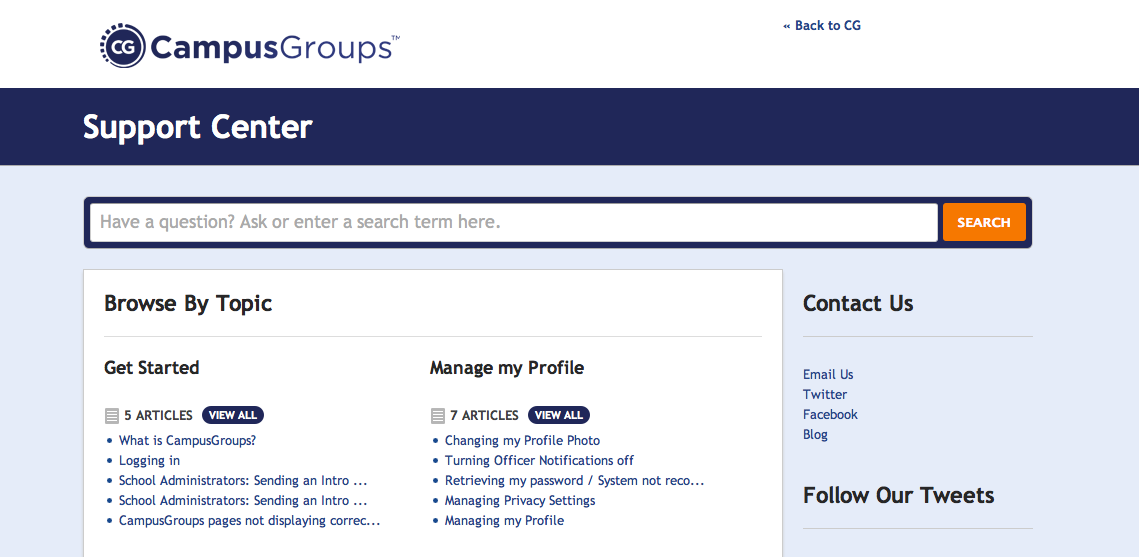
Any question -general or specific- on CampusGroups? Check the Support!


Whether you are totally new to CampusGroups or a regular user you may at some point have a question for us.

Our Support is here to answer any of those questions. Before reaching out to us at support(at)campusgroups.com we recommend you first check our support site at http://support.campusgroups.com/. Chances are your question has already been asked by another user and answered by our staff. 

Our support site is constantly updated and provides a variety of quick articles and tips classified by topic. Check it out!

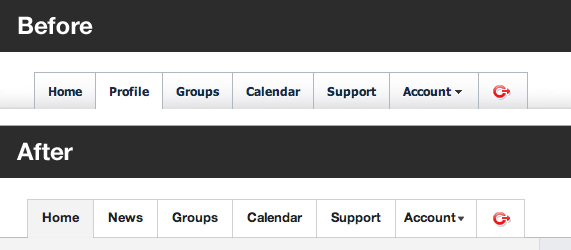
Your new top menu

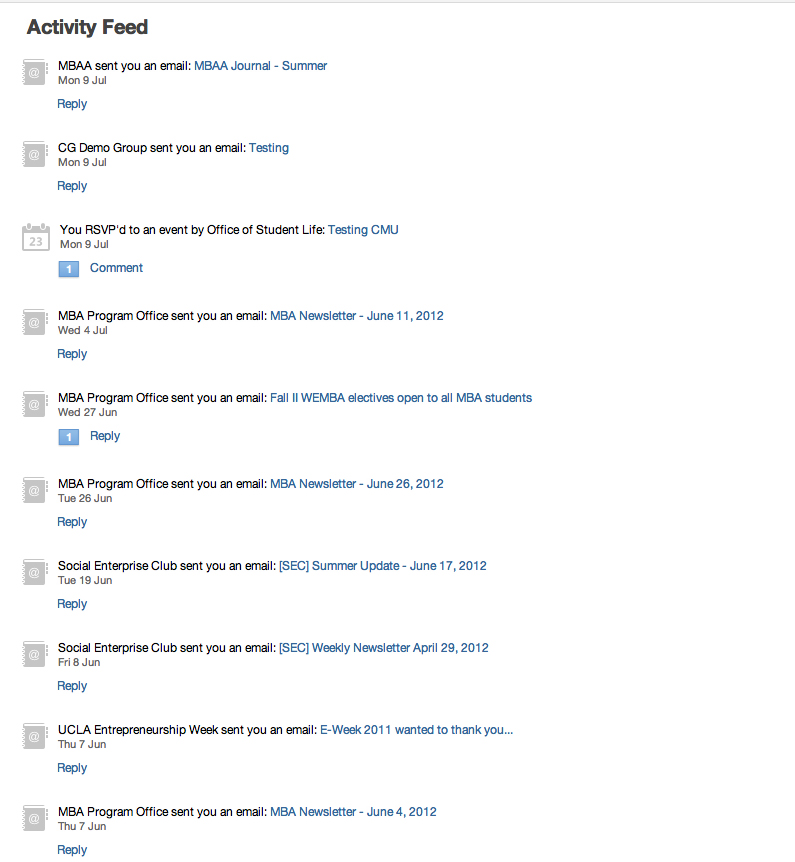
  • Home: You can now access your School Feed by clicking on the "Home" menu.
  • News: The "News" menu allows you to retrieve all the news of your school (upcoming events, newsletters, blogs...). 
  • Groups: You can find all the groups of your school and join them by clicking on the "Groups" menu. 
  • Calendar: You can see all the events of your school groups in the "Calendar" menu. 
  • Support: If you have any question about how to use CampusGroups, click on the "Support" menu, you will certainly find the answer. 
  • Account: You can access your profile, set your password, email account and much more.


Your new main bar

The search bar

You can now access easily all the students, events, documents and emails of your groups by typing their names in the search bar.

Notifications 

The "Bell" button now allows you to catch up on all your activities (emails received, surveys answered, events you rsvp'd...).

Bookmarks

You can retrieve all your bookmarked elements by clicking on the "Star" icon of the main bar. Then, you can access the elements by clicking on their names.

You can bookmark documents, events, groups, emails, people by clicking on the "Star" icon next to these elements. If the star is yellow, it means that the element is already bookmarked. You can unbookmark it by clicking again on the yellow star.

Group management

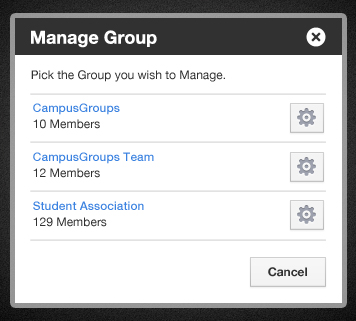
If you are an officer of a group you can access the manage area by clicking the 'Cog' button on the main bar.

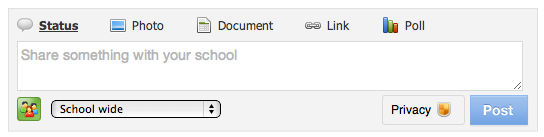
Your new status bar

You can now write a post on the feed by clicking on one of the following links: Status, Photo, Document, Link or Poll according to the type of post you want to make.

By clicking on the "Privacy" button, officers and members of a club can  set the visibility of their posts according to student types and year of graduation or by friends lists.

Once the post is on the feed, the owner can delete it or change its visibility by clicking on the "Cog" button of the post and select either "Delete" or "Privacy".